
There are several ways you can run your automated test cases. Here we show the different executions.
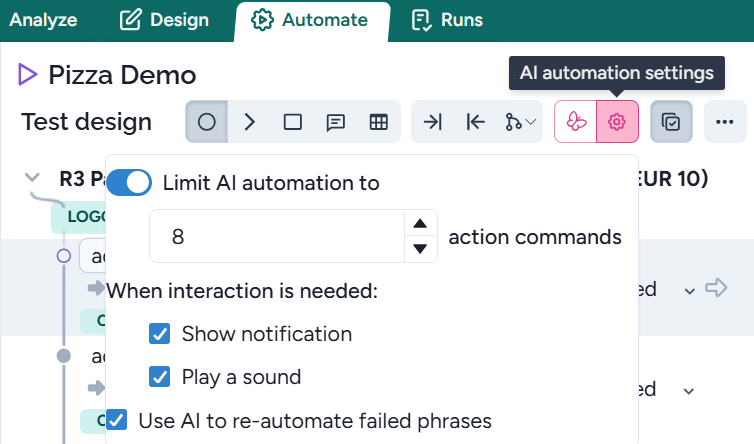
AI automation settings
When AI automates the test cases, it may fail and add the control to the tester
Running single test cases
Running a single test from the Test design window
First, it’s reasonable to run a single test, you or AI just implemented. You can run a single test by hovering the mouse over a node in the graph. If you do so, the node changes to a play icon, and you can select to execute the selected test case or all the test cases from here:
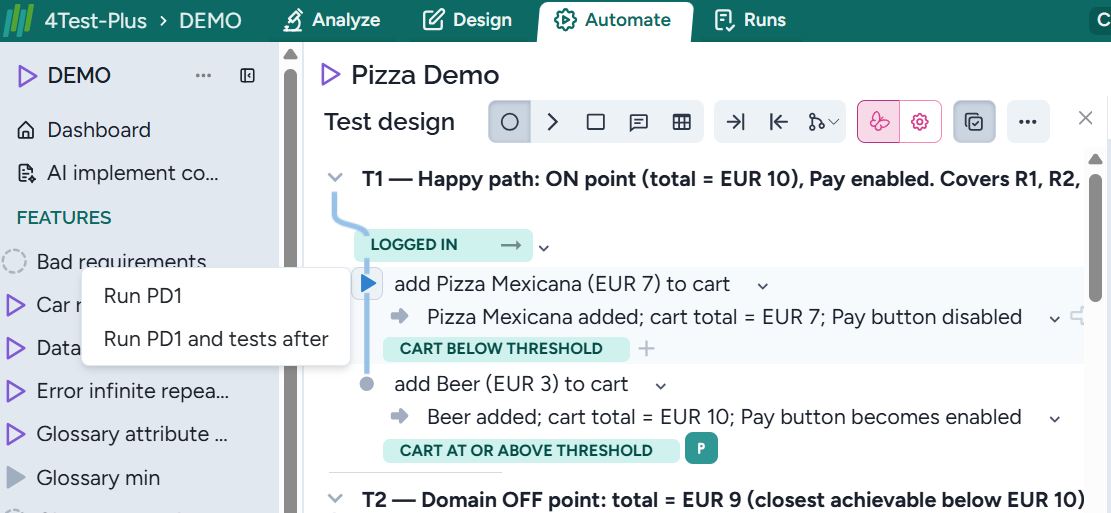
In the figure above, the first test case - PD1 (Pizza Demo 1) will be executed:
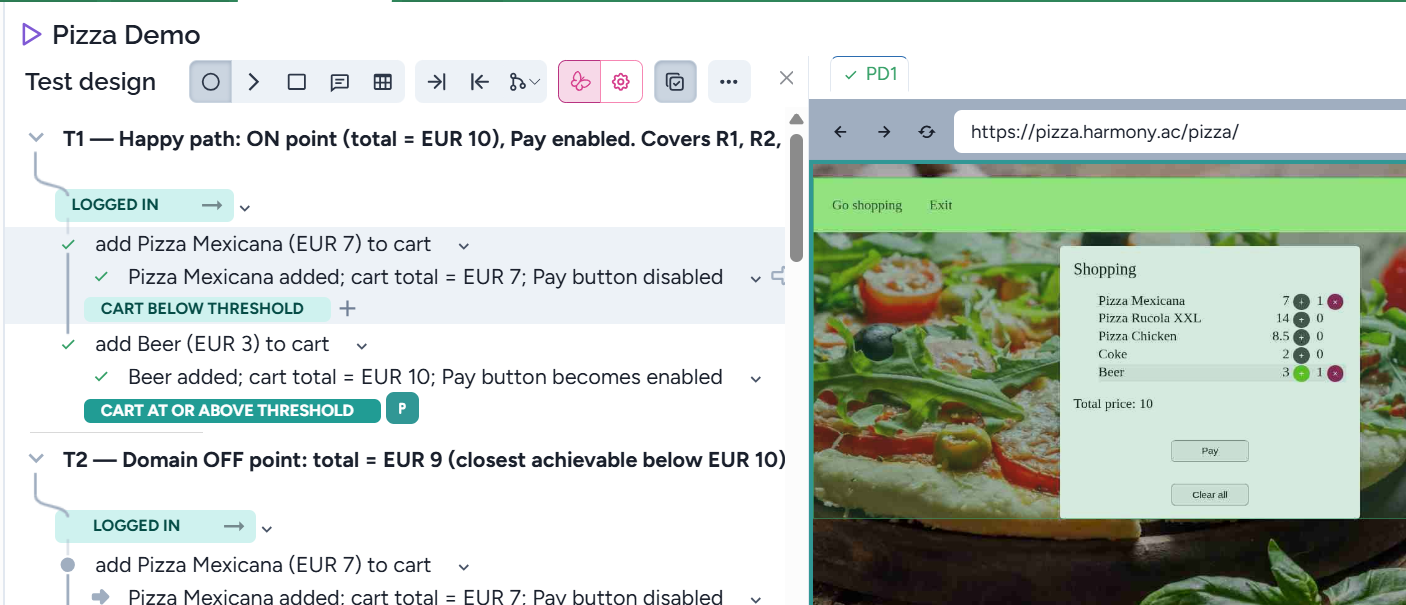
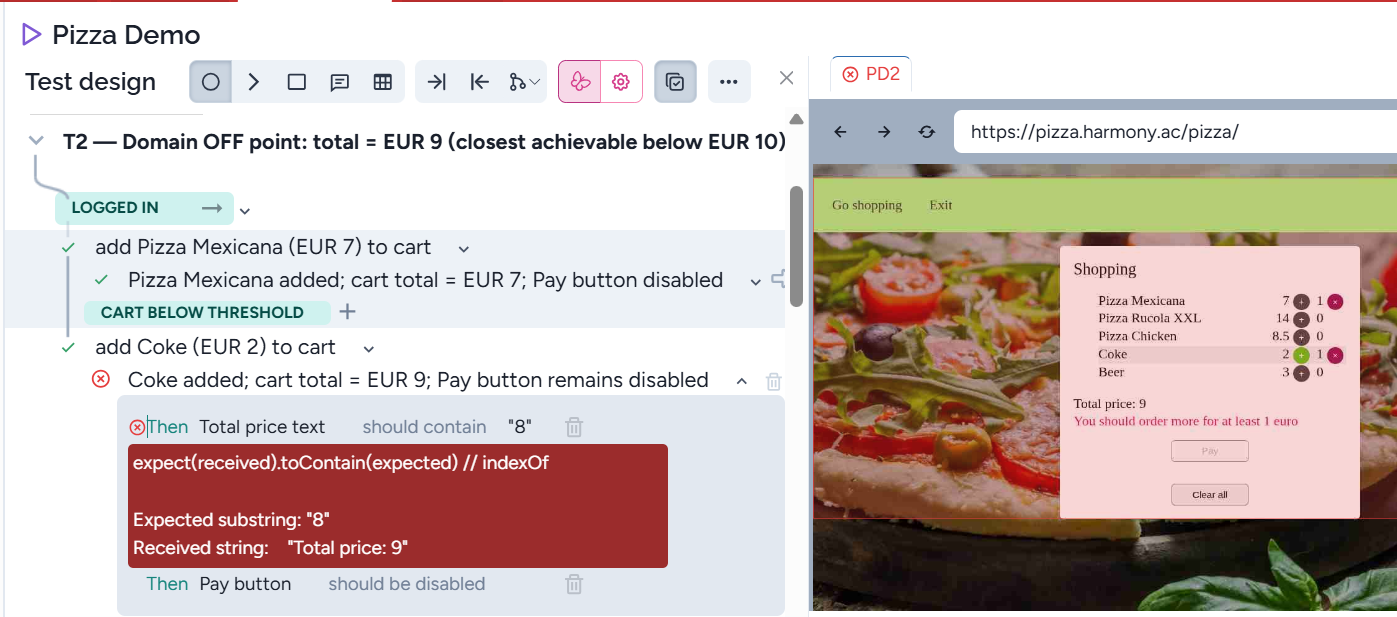
Here, the test passed as there is the passed icon preceding PD1. When we execute a faulty test (the expected result is different from the received), the result is:
Running a single test from the Tests window
Select the Test cases window at the bottom menu, then click on Run or Run in background:
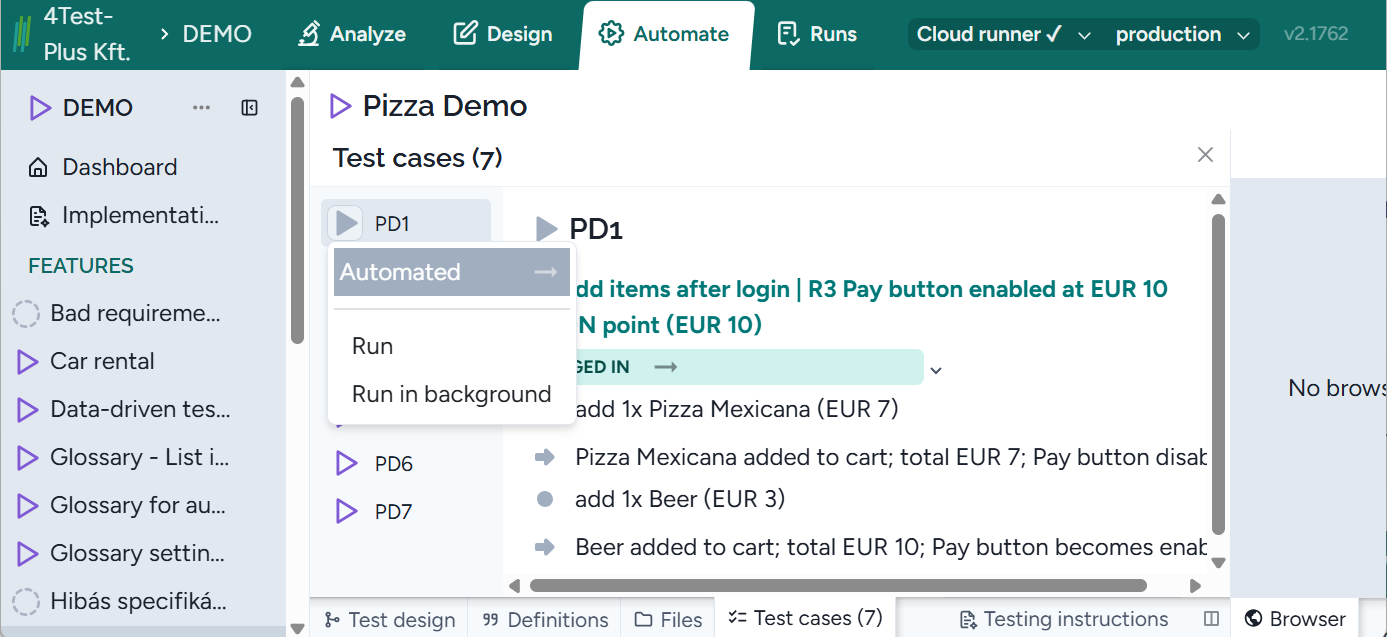
Selecting Run in background, the browser will not open; you can follow the test execution in the Test case window (the steps pass or fail, and the related icons appear). However, the execution speed is increased by about 50%.
Stop running a test and modifying the model
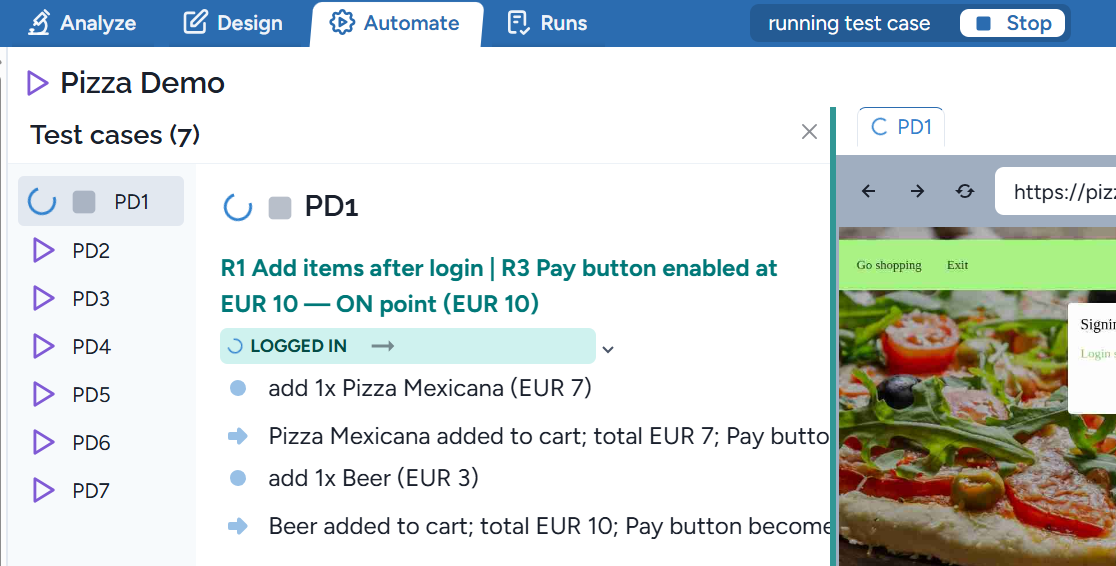
When you execute a test case, you can stop it (clicking on Stop), when you want:
Clear test results
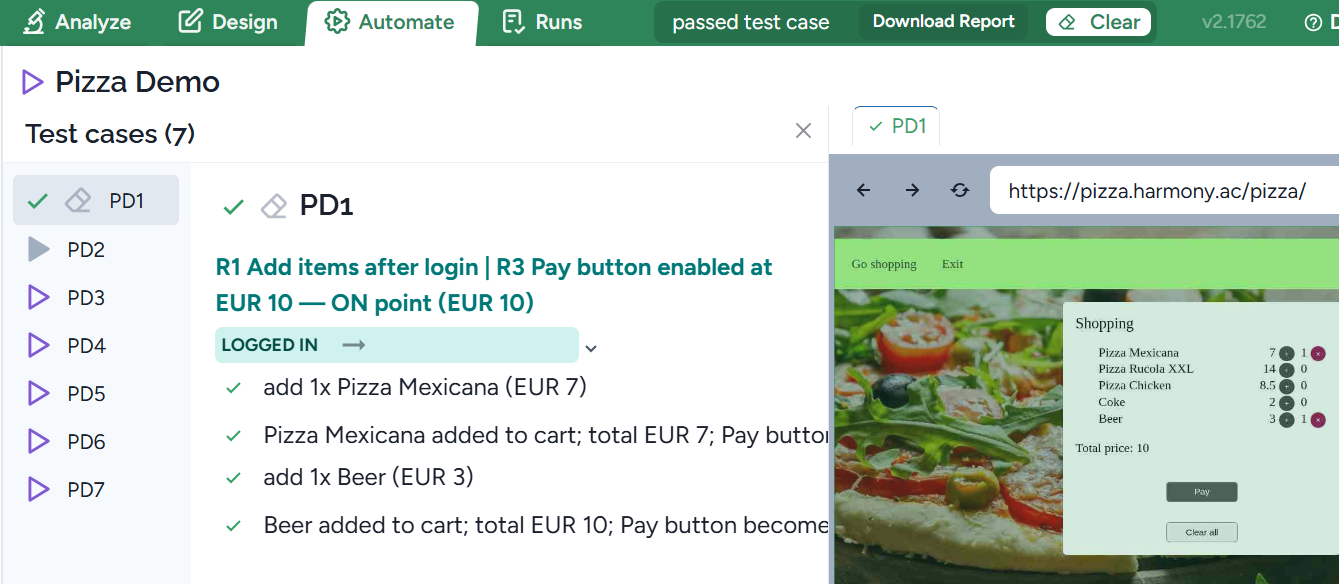
When you need to re-execute one or more test cases, you should clear the existing results. Just press the erase icon next to the feature name:
Running all test cases passing through a selected test step
When you fix a step that is involved in more test cases, you can execute all of them as shown in the figure below. Just select the test and open the menu, select Run, then All tests passing through here:
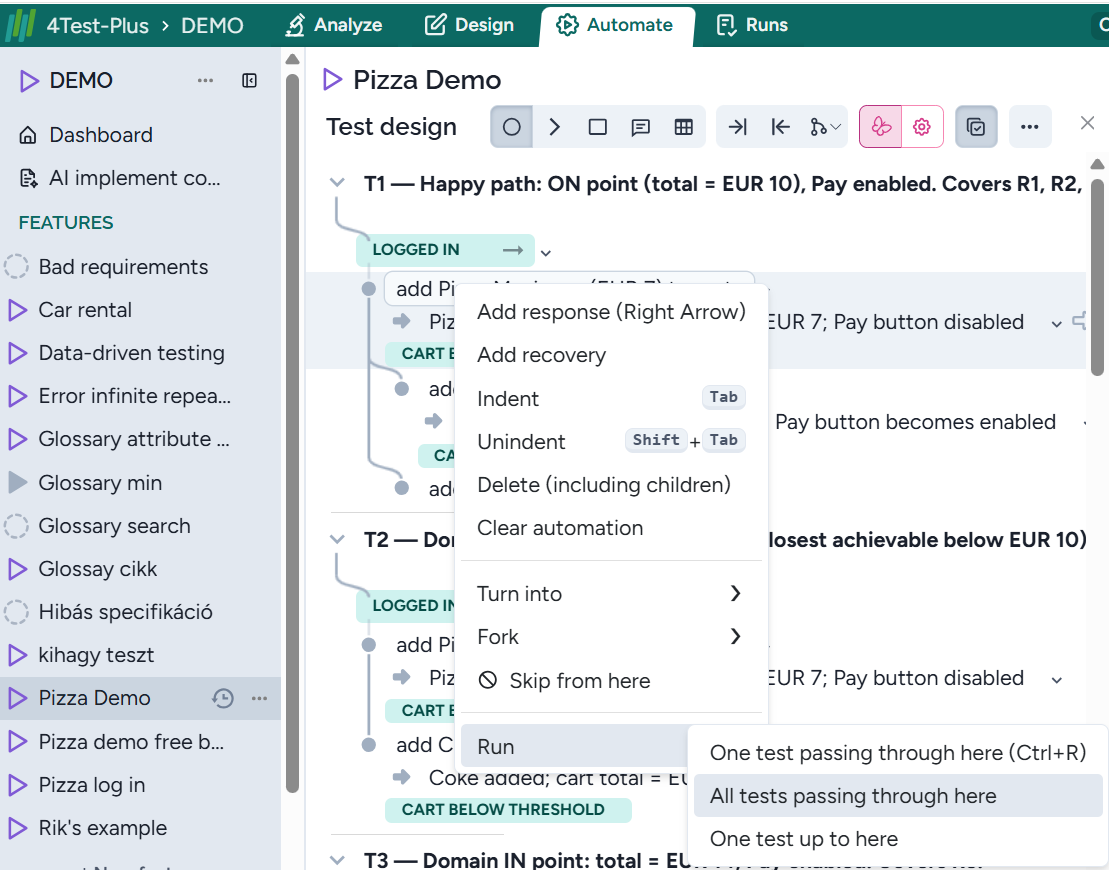
Here both test cases are executed and passed:
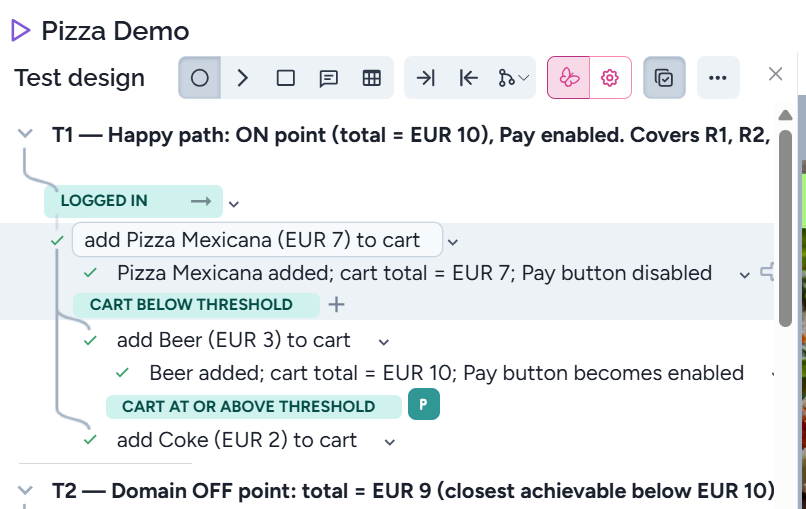
You can select to execute a single test case, but just running a test from the fixed step is the same.
One test up to here
You can execute a test case up to a test step:
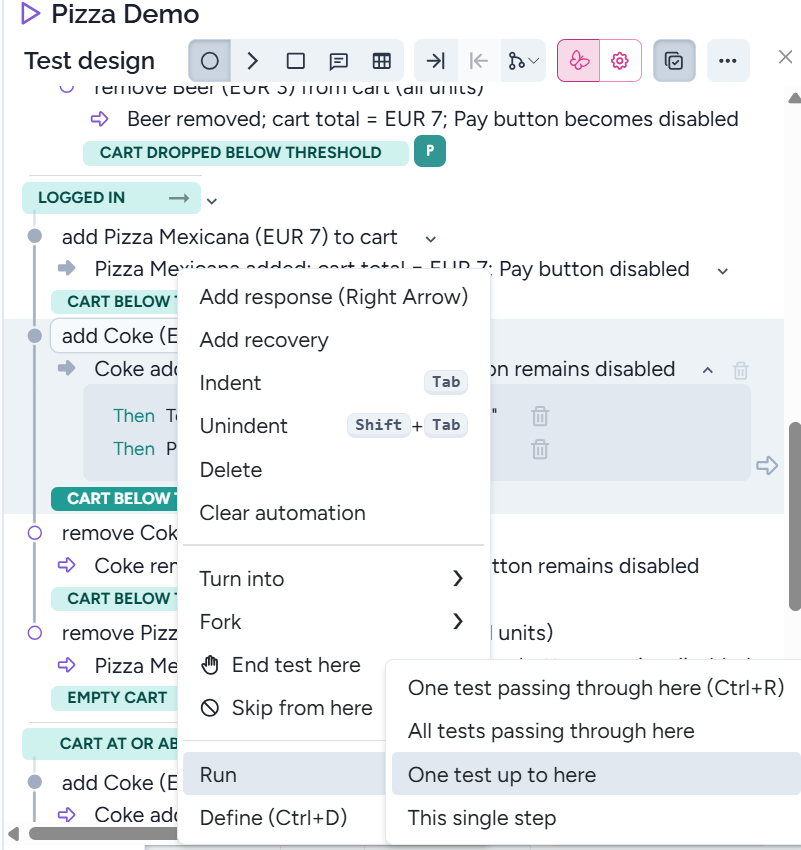
This can be used when you want to stop at a given test execution point to see the screen or some other reason.
Running a single test step
It happens frequently that you (or the AI) fix a step, and the subsequent step could be executed as the program state is appropriate. You can execute a single step in the following way:
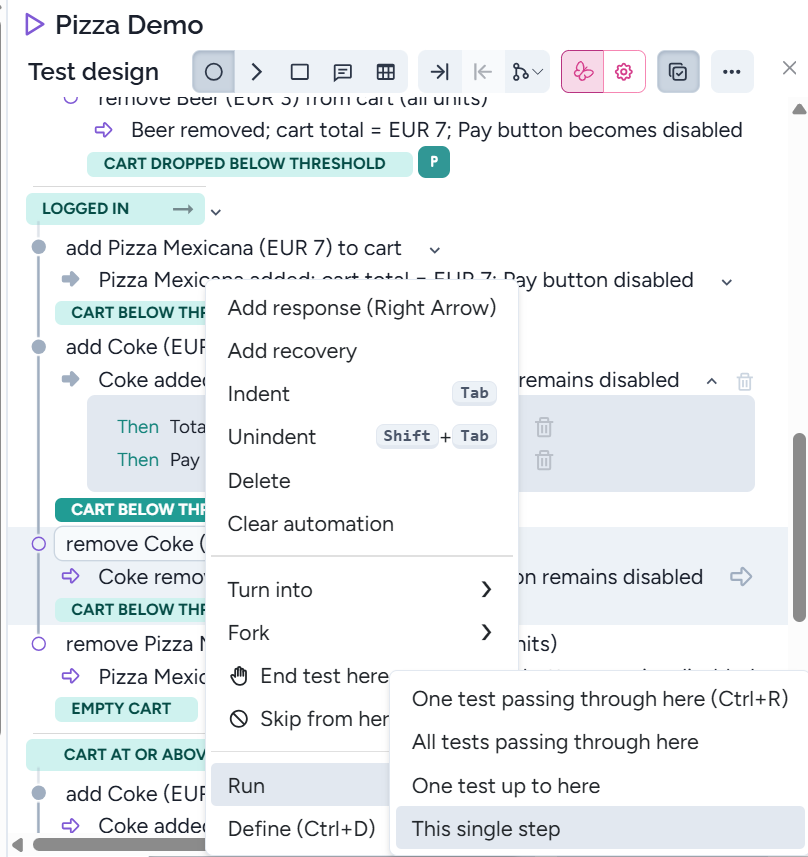
Running the tests for a feature
Running all the tests of a feature one by one
You can execute all tests for a feature in the following ways:
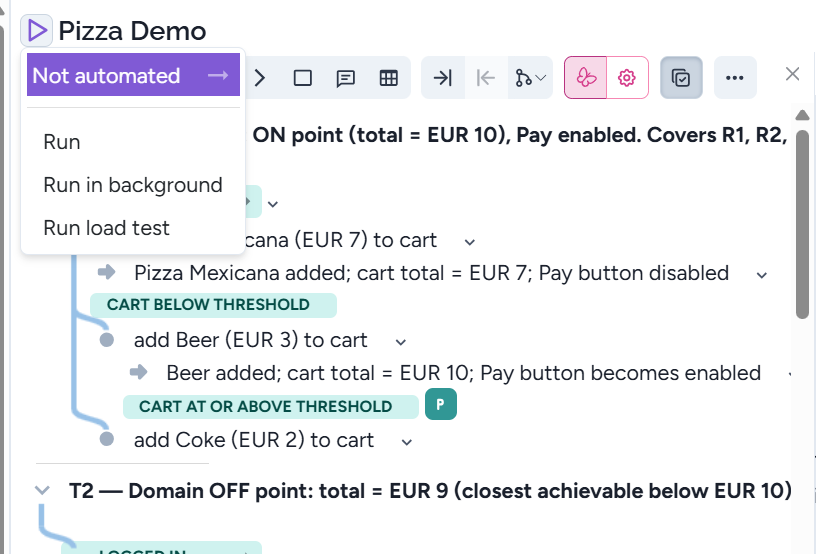
Similarly to the single test execution, when you select Run in background, the browser remains closed, and the execution will be faster.
Note that Run load test is in an experimental phase. Please don’t use it.
You can also execute the test cases from the Test cases window:
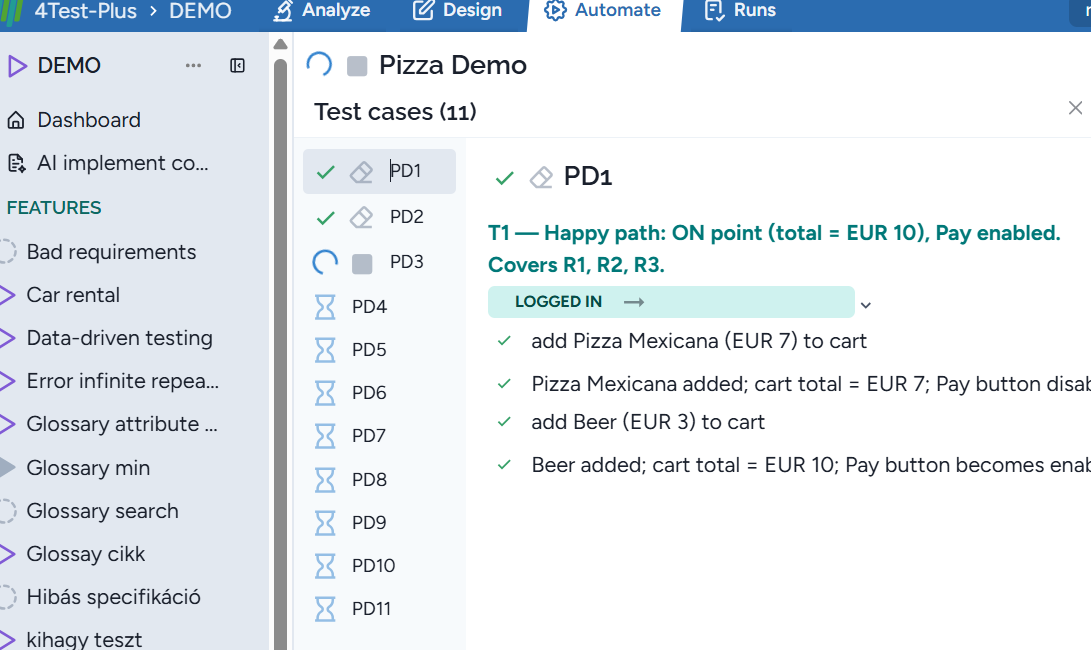
It shows the passed, failed, and not yet executed test cases. We suggest using this alternative.
Parallel execution
The test cases must be independent and if so, you run them in parallel. Just check the run parallel box in the Parameters:
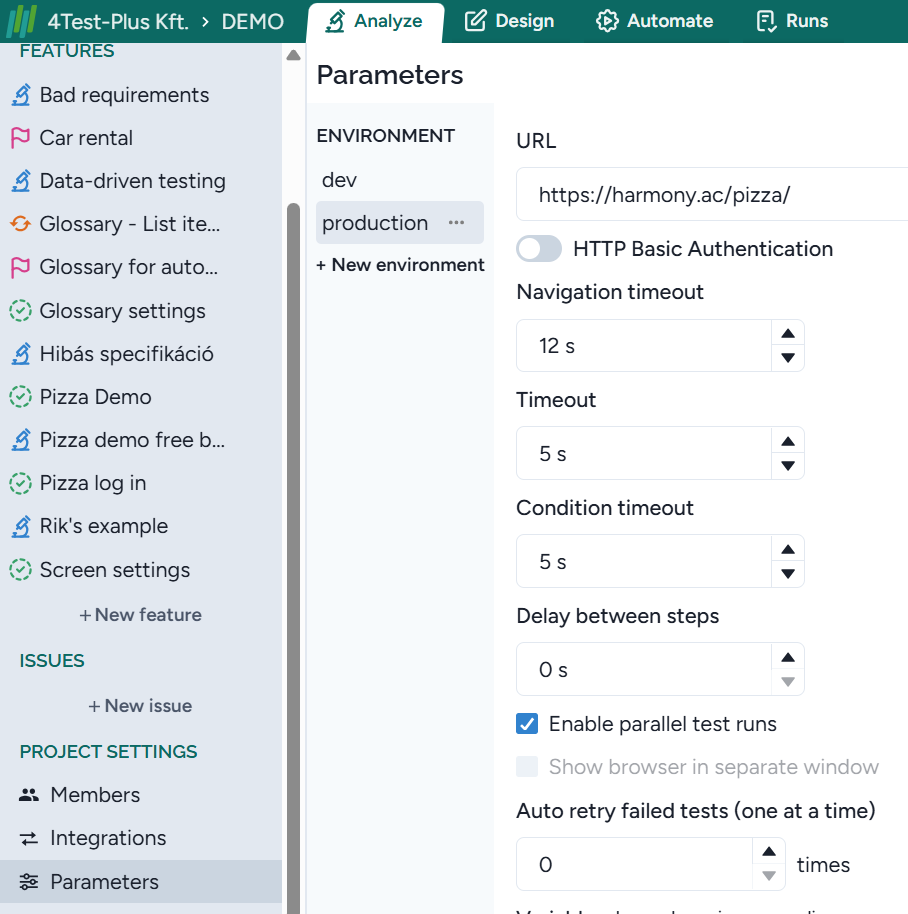
Skip running a feature’s test cases
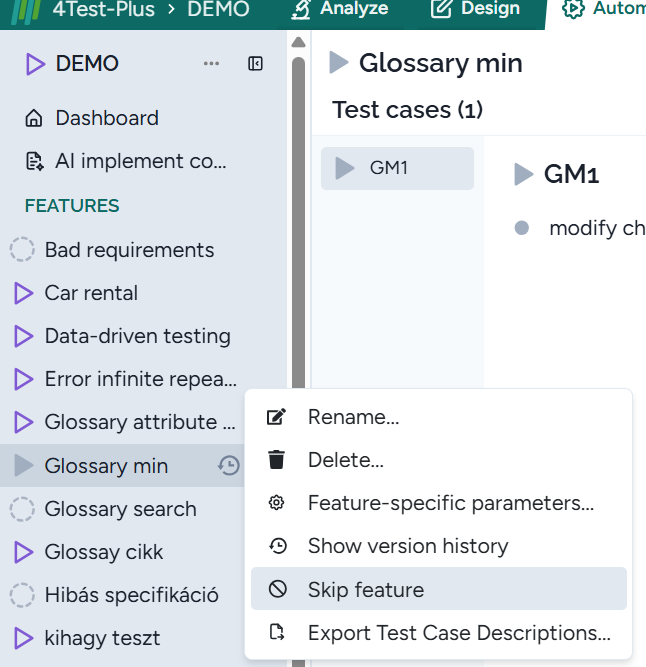
If you want the test cases for a feature not to run, make that feature skipped.
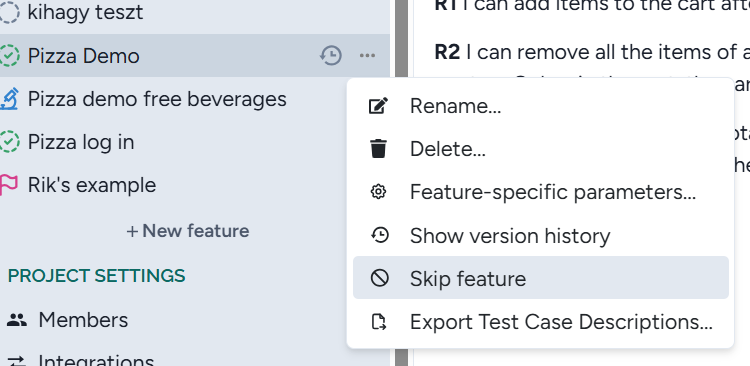
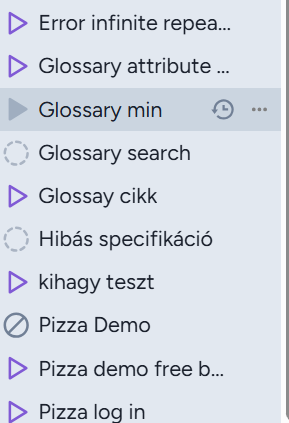
After the feature (Pizza Demo) became skipped with the following mark:
Running the tests for a project
You can run all the test cases for a project:
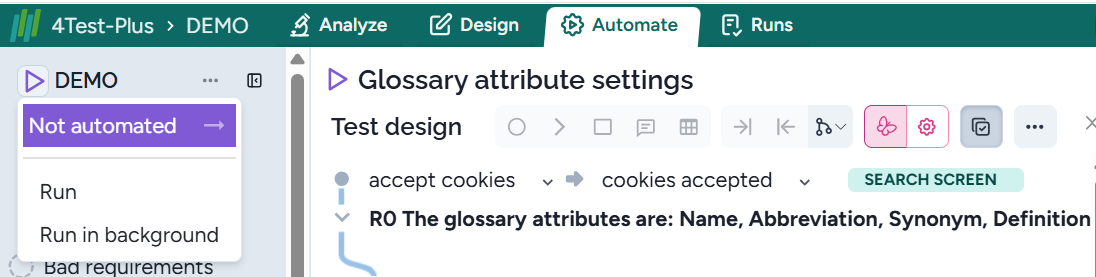
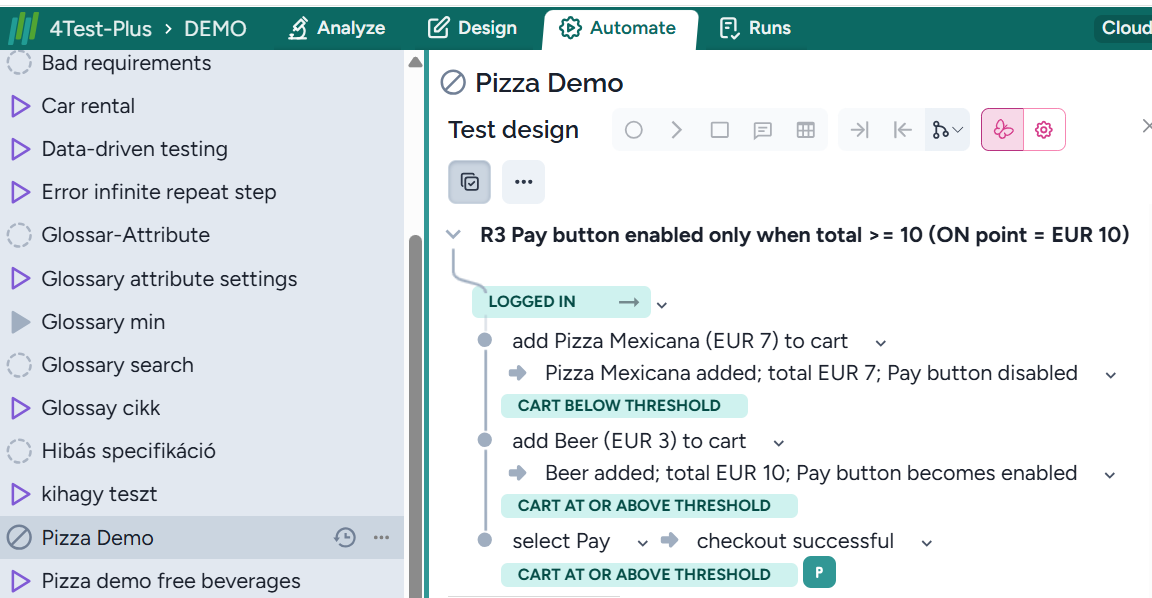
Similar to a feature, you can run the tests in the background. It can occur that the test cases for a feature are not ready, and you want them skipped. To do this, let’s select the feature, click on the three dots next to it, and select Skip feature:
This feature (Pizza Demo) will be marked as skipped:
Project test cases can also be executed in parallel.